

The Untapped Goldmine: Why Your Booking.com Listing Is Underperforming Without Instant Booking
You know that sinking feeling when a guest asks to book, then… disappears? Or worse, they send three messages, wait for a reply, and book somewhere else by lunch. It happens a lot. And on Booking.com, that delay can cost you real money.
Travel bookings are messy online. The travel and hospitality space has an abandonment rate of 81.7%, which is way above the global e-commerce average. A big reason is simple: too many steps, slow pages, and too much waiting Baymard Institute data. People want fast. They want clear. They want yes now.
That’s why the Booking.com Instant Book feature matters so much. It’s not just a nice extra. It helps reduce friction, support better guest satisfaction, and can help improve Booking.com ranking signals tied to reliability and response speed. In other words, it can help increase bookings on Booking.com without making your team chase every request by hand.
And if you’re still using manual approval for every stay? Yeah, that can slow you down. Guests notice. Competitors do too.
For hotels, homestays, and vacation rental listing optimization, Instant Book often feels like the cleaner path. Less back-and-forth. Fewer missed chances. Better flow inside your hotel listing management routine. Plus, when your listing is easier to book, it usually gives guests fewer reasons to click away.
If you’re trying to figure out how to optimize listings in Booking.com, this is one of the first things to look at. A smoother booking path can make your property look easier to trust, easier to choose, and easier to book. And honestly? That’s the whole point.
Want a calmer way to manage this? Tools like Ease My Hotel can help centralize booking management, guest communication, and channel sync so you’re not stuck switching tabs all day. That kind of setup makes it easier to manage Booking.com availability and keep your calendar clean.

Section 1: What is Instant Booking and Why Does Booking.com Prioritize It?
Ever watched a guest hover, think, and vanish? Yeah, that little pause can sting.
Instant Booking on Booking.com means a guest can lock in a stay right away, without waiting for host approval. No back-and-forth. No inbox limbo. Just book, pay, done.
And that matters more than a lot of people think. Travel is one of the most drop-off-prone spaces online. In fact, Baymard Institute data shows travel and hospitality booking abandonment sits at 81.7%, and the main reasons are pretty human: too many steps, slow pages, and too much uncertainty. People get tired. They get distracted. They move on.
So why does Booking.com like Instant Booking so much? Because the platform wants quick, clean, successful reservations. That’s the whole flow. When your listing lets guests book right away, it matches what shoppers want and what the platform wants too. Better speed. Less friction. More completed stays.
Here’s the thing. Instant Booking also helps with the user experience in a big way. It removes the awkward wait. It grabs impulse bookers before they leave. And it usually gives your listing a better shot at turning clicks into confirmed reservations.
Why it works so well
| Pros of beeswax on hair | Why people like it |
|---|---|
| Strong hold | Great for twists, edges, braids, and locs |
| Frizz control | Helps smooth rough strands |
| Moisture sealing | Can help hair feel softer for longer |
| Simple ingredients | Often fewer extra fillers than many gels |
| Low cost for DIY | A little product can last a while |
That’s why Booking.com optimization tips often start here. If you’re working on vacation rental listing optimization or trying to increase bookings on Booking.com, this setting is one of the easiest places to start.
And if you’re managing a hotel, hostel, or homestay, it can make hotel listing management a lot calmer too. Fewer messages. Fewer missed chances. Less chaos at 9:47 p.m. when your team is already tired.
For busy teams, pairing Instant Booking with smart tools can help even more. A system like Ease My Hotel can centralize booking management, guest communication, and channel sync, so you can manage booking.com availability without hopping between five tabs and a notebook that somehow still exists.
But wait, there’s a catch. Instant Booking works best when your listing is ready for it. Good photos. Clear house rules. Clean availability. That’s what we’ll get into next.
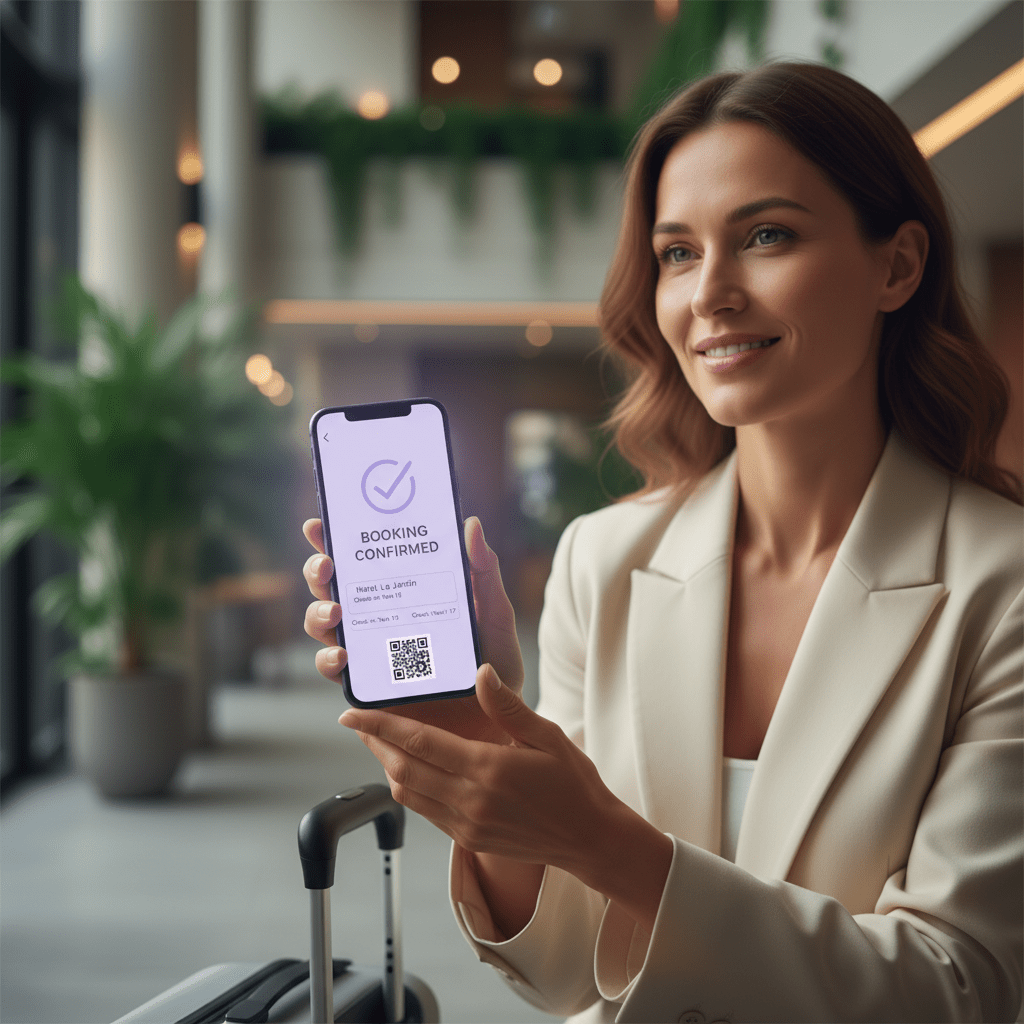
Section 2: The Data-Backed Benefits: How Instant Booking Optimizes Your Listing Performance
You know what’s funny? The thing that looks like “just a setting” can end up moving the whole listing.
Instant Booking usually does three big jobs at once. It helps more people see your place. It helps more of those people say yes. And it saves your team from a pile of tiny tasks that eat the day alive.
1) More visibility, more clicks
Booking.com wants listings that feel easy to book. That means Instant Book can help your place show up stronger in search because it sends good signals like fast response flow, cleaner booking paths, and less friction for guests. It’s not magic. But it does line up with how the platform likes to rank smooth, low-drama listings.
And more visibility matters. If your property gets pushed higher in search, more travelers see it, which usually means more chances to book. Simple chain reaction. More eyes. More clicks. More stays.
2) Better occupancy and more revenue
This part is the real payoff. A lot of guests book late, especially weekend travelers and business guests who want something now, not next Tuesday. Instant Booking helps you catch those folks before they bounce to another place.
That matters because travel booking drop-off is huge. The travel and hospitality space sees an 81.7% abandonment rate, and slow booking flows make people leave fast Baymard Institute data. If your listing makes guests wait, they often move on. But if they can book right away, you’ve got a much better shot at filling empty nights and dodging dead calendar gaps.
Here’s a quick look at the upside:
| What changes | What you get |
|---|---|
| Faster booking path | More completed reservations |
| Last-minute access | Better calendar fill |
| Less hesitation | Fewer lost guests |
| Easier checkout flow | More revenue from ready-to-book travelers |
3) Way less admin work
And this one gets overlooked all the time.
If you’ve ever spent your afternoon answering “Is this still free?” over and over, you already know the pain. Instant Booking cuts down the back-and-forth, so your team spends less time checking calendars, confirming requests, and chasing people who were probably never going to book anyway.
For busy hotels, homestays, and vacation rentals, that can save hours every week. Not a little. A real chunk of time. Plus, it helps prevent double bookings when paired with clean calendar sync and solid hotel listing management tools.
That’s where something like Ease My Hotel fits in nicely. It brings booking management, guest communication, and channel sync into one place, so you can manage Booking.com availability without living inside your inbox. Less chaos. Fewer missed messages. Better control.
If you’re working through Booking.com optimization tips or trying to increase bookings on Booking.com, Instant Booking is one of the easiest wins to test first. And once it’s paired with good photos, clear rules, and fast calendar updates, the whole listing starts to feel easier for guests to trust.

Section 3: Your Step-by-Step Guide to Activating and Customizing Instant Booking in the Extranet
You know that moment when you’re staring at a screen and thinking, “OK… where is the one button I actually need?” Yeah, Booking.com can feel like that at first.
But once you know the path, it’s pretty simple.
Step 1: Log in and head to the right menu
Start here:
- Log in to the Booking.com Extranet
- Click Property in the top menu
- Choose Policies
- Scroll down to How you receive bookings under Other Policies
- Click Edit
That’s the spot where the booking style lives. Not hidden forever. Just tucked away like a sock in the laundry.
Step 2: Turn on Instant Booking
Inside that section, look for the option that says All guests can book instantly. Select it, then click Save.
That’s the main switch for the Booking.com Instant Book feature. Once it’s on, guests can book without waiting for manual approval. That’s the whole point. Less waiting. Less friction. More chance they finish the booking instead of wandering off to another listing.
And honestly, that matters a lot. Travel booking is still one of the highest drop-off spots online, with abandonment around 81.7% in travel and hospitality. People leave when it feels slow or clunky, so a smoother path can help you increase bookings on Booking.com without doing more inbox babysitting.
Step 3: Check the nearby settings too
Don’t stop at the toggle. A few other settings can help the whole setup work better:
- Guest information: You can ask for a verified phone number or home address under Property > Policies > Guest Information
- House rules: Keep them short, clear, and real
- Automatic messages: Set up simple templates for booking confirmations and check-in notes
- Cancellation policy: Make sure it matches how you want to run the place
This part is easy to skip, but it saves headaches later. If guests know what to expect, there’s less confusion, fewer messages, and fewer awkward surprises at the front desk.
Step 4: Sync your calendar before you do anything else
This is the big one. The thing hosts worry about most. Double bookings.
If you only remember one thing from this section, make it this: sync your calendar.
Use a channel manager or iCal connection so your Booking.com calendar stays lined up with Airbnb, your direct site, and any other OTA you use. If your dates aren’t synced, Instant Booking can backfire fast. A guest books. Then another guest books the same night somewhere else. Total mess.
That’s why tools like Ease My Hotel can be a calm, practical help here. Its OTA and channel manager setup lets you manage booking.com availability from one place, so you’re not jumping between tabs and praying the calendars match. For hotels, hostels, resorts, homestays, and vacation rentals, that kind of setup can make hotel listing management feel a lot less chaotic.
Here’s a simple check before you go live:
| Task | Why it matters |
|---|---|
| Enable Instant Booking | Lets guests book right away |
| Review guest info rules | Helps you screen bookings a bit |
| Set message templates | Saves time on repeat replies |
| Sync calendars | Helps prevent double bookings |
| Confirm cancellation policy | Avoids confusion later |
Step 5: Test the full booking flow
Before you walk away, test it like a guest would. Open the listing. Click through the dates. Read the rules. Look at the photos. See if anything feels slow or unclear.
Actually, wait… maybe do this twice. Once on desktop and once on mobile. A lot of guests book on their phones while standing in line for coffee or riding the train. If the page feels messy there, they may never finish.
If you’re working on Booking.com optimization tips or trying to improve your vacation rental listing optimization, this last check is a big deal. It helps you spot weird gaps before they cost you a booking.
And if all of this still feels like too much to juggle by hand, that’s fair. Most property teams are already doing ten jobs at once. A unified system like Ease My Hotel can help connect booking management, guest communication, and channel sync in one dashboard, which makes the whole process easier to live with.
Simple setup. Cleaner calendar. Fewer surprises. That’s the goal.
Try Ease My Hotel for free.
No lock-in contracts. Cancel anytime
Section 4: Mitigating the Risks: How to Use Instant Booking Safely and Protect Your Property
You want more bookings. Of course you do. But you also don’t want a bad guest to turn your nice place into a headache.
Good news: Instant Booking doesn’t mean you’re tossing the keys into the wind. It just means you set smart guardrails first.
Set guest requirements the smart way
Inside Booking.com, you can ask for a verified phone number and a home address in the Extranet under Property > Policies > Guest Information. That’s a simple first layer. Not perfect. But helpful.
And while Booking.com doesn’t offer the same deep screening filters some other platforms do, you can still make your listing safer by watching for guests with a solid track record and clear payment info. Returning guests with a good history usually feel less risky too.
Here’s a quick cheat sheet:
| Guest setup | Why it helps |
|---|---|
| Verified phone number | Easier to reach guests fast |
| Home address | Adds a bit more guest detail |
| Valid email and payment info | Required for booking anyway |
| Clear guest profile history | Helps you spot trusted repeat guests |
Make house rules plain and easy to see
This part matters more than people think. If a rule is fuzzy, it’s hard to enforce. If it’s clear, you’ve got a better shot.
Keep your house rules short and specific. Say things like:
- No smoking inside the property
- No unapproved late checkout
- No extra overnight guests
- Quiet hours after 10 p.m.
And yes, put them where guests can actually read them before they book. During the Instant Book flow, guests agree to your rules and cancellation policy, so the wording should be clean and real, not stuffy or vague.
Actually, scratch that. Vague rules are the fastest way to argue with someone at midnight.
Use cancellation policies and deposits wisely
A strict cancellation policy can save you from lost time and last-minute mess. If your property needs more lead time, say so up front. If you can’t handle flexible changes, don’t pretend you can.
Security deposits and Booking.com damage protections can also help, but they work best when your rules and listing details are already tight. Take photos before check-in. Keep records. Save messages. Boring? A little. Useful? Big time.
The booking process itself matters too. Travel and hospitality still has an 81.7% abandonment rate, and guests often leave because booking feels too slow or too uncertain Baymard Institute data. So the goal is not just speed. It’s safe speed.
That’s the balance with How to Optimize Listings in Booking.com. You want the easy booking path of the Booking.com Instant Book feature, but you also want protection. With clear guest requirements, strong house rules, and a smart deposit setup, you can increase bookings on Booking.com without feeling like you’ve handed over control.
And if all this needs to stay organized across multiple rooms or properties, a tool like Ease My Hotel can help you manage booking.com availability, guest communication, and channel sync from one place. That makes hotel listing management a lot less messy. Which, honestly, is nice for everyone.
Final safety check before you switch it on
- Read your guest rules out loud
- Check your cancellation policy twice
- Add photos that match the listing exactly
- Make sure your calendar is synced
- Keep your damage process documented
Small prep. Better results. Fewer surprises. That’s the win.
Section 5: Advanced Optimization: Supercharge Your Listing Beyond the Basics
Ever notice how some listings seem to grab people fast? Not lucky. Just smart setup.
Once Instant Booking is on, the next move is making your listing feel impossible to scroll past. That starts with promos, then moves into tracking, then a little content cleanup so fast-moving guests get the point right away.
Pair Instant Book with the right promos
If you want more eyes on your place, try Last-Minute Deals and Mobile Rates. Last-Minute Deals can help fill those awkward empty nights near check-in. Mobile Rates work well because a lot of guests book on their phones, sometimes while they’re half-distracted in line for coffee.
Plus, Booking.com’s own promo tools let you stack some offers in smart ways, which can give your listing a nice push without making the booking flow feel messy. That matters because travel booking still has a huge drop-off rate, around 81.7%, and people tend to leave when the path feels slow or uncertain travel booking abandonment data.
Check your numbers in Analytics
OK, this next part is actually pretty cool. Booking.com gives you an Analytics tab in the Extranet, and that’s where you can see if your changes are doing anything real.
Watch these three things:
| Metric | What it tells you |
|---|---|
| Conversion rate | Are more visitors booking? |
| Booked Room Nights | Is demand going up? |
| Total Revenue | Are the changes making money? |
If your clicks go up but bookings don’t, something’s off. Maybe the photos are weak. Maybe the headline is too fuzzy. Maybe the price looks fine on desktop but weird on mobile. That’s the kind of stuff Analytics helps you catch.
Write for the fast-acting guest
Instant Book guests usually don’t want a novel. They want quick answers. So lead with the stuff that matters most.
Try this order:
- Bright hero photo
- Clear room shots
- Bathroom photo
- One strong amenity shot
- Headline with a real selling point
And make the headline specific. Not “beautiful stay.” Better: “2BR near the beach with free parking.” That kind of line works because it answers the big question fast.
Photos matter a lot too. Booking.com says around 24 property photos and 4 per room type can help conversion, and listings with strong photos usually get more attention. No mystery there. People want to see what they’re paying for.
If keeping all this in sync feels like a lot, a tool like Ease My Hotel can help. Its booking management, guest communication, and OTA sync features make it easier to manage booking.com availability and keep promo changes, calendar updates, and property content lined up in one place. Handy stuff for busy hotel listing management teams.
So if you’re working on How to Optimize Listings in Booking.com, don’t stop at Instant Booking. Add the right offer, watch the data, and make your listing speak fast. That’s where the real lift starts.
Stop Leaving Money on the Table: Make Instant Booking Your Competitive Edge
If you want more eyes on your listing, more filled nights, and less time spent chasing messages, Instant Booking is not just a handy setting. It’s a smart move. Travel booking is still full of drop-off, and guests usually don’t wait around when the path feels slow or fuzzy. That’s why the Booking.com Instant Book feature can help with visibility, occupancy, and day-to-day efficiency all at once. Travel booking abandonment data backs that up.
Here’s the plain truth. If you’re serious about How to Optimize Listings in Booking.com, you can’t treat Instant Booking like a bonus. It helps your listing feel easier to trust, easier to book, and easier to manage. And yes, it can also help you increase bookings on Booking.com without turning your inbox into a mess.
Your task for today: log into your extranet, use the safety checklist, sync your calendar, and switch on Instant Booking. Then keep it clean with strong house rules, clear guest details, and solid channel sync. That’s the real win for hotel listing management, vacation rental listing optimization, and anyone trying to manage booking.com availability without double bookings or last-minute stress. Simple steps. Better flow. More bookings.
Try Ease My Hotel for free.
No lock-in contracts. Cancel anytime